Deployment & Authorization
Nebraska uses either a noop authentication or OIDC to authenticate and authorize users.
Preparing the database for Nebraska
Nebraska uses the PostgreSQL database, and expects the used database to
be set to the UTC timezone.
For a quick setup of PostgreSQL for Nebraska’s development, you can use
the postgres container as follows:
-
Start
Postgres:docker run --rm -d --name nebraska-postgres-dev -p 5432:5432 -e POSTGRES_PASSWORD=nebraska postgres
-
Create the database for Nebraska (by default it is
nebraska):psql postgres://postgres:nebraska@localhost:5432/postgres -c 'create database nebraska;'
-
Set the timezone to Nebraska’s database:
psql postgres://postgres:nebraska@localhost:5432/nebraska -c 'set timezone = "utc";'
Tuning PostgreSQL auto-vacuum
Autovacuum and autoanalyze in PostgreSQL are effectively disabled when tables are very large. This is because the default is 20% of a table (and 10% of a table for analyze).
We advise to change the mentioned configuration in order to have autovacuum and autoanalyse run when about 5,000 rows change. This value was chosen based on getting the autovacuum to run every day, as it’s large enough to not cause the autovac to run all the time, but about the right size to make a difference for query statistics and reducing table bloat.
You can verify (and eventually use) this SQL file where we have set up these changes.
The analyze threshold was chosen at half the autovacuum threshold because the defaults are set at half.
Deploying Nebraska for testing on local computer (noop authentication)
-
Go to the nebraska project directory and run
make -
Start the database (see the section above if you need a quick setup).
-
Start the Nebraska backend:
nebraska -auth-mode noop -http-static-dir $PWD/frontend/build -http-log
-
In the browser, access
http://localhost:8000
Deploying Nebraska with OIDC authentication mode
-
Go to the nebraska project directory and run
make -
Start the database (see the section above if you need a quick setup).
-
Setup OIDC provider (Keycloak Recommended).
-
Start the Nebraska backend:
nebraska --auth-mode oidc --oidc-admin-roles nebraska_admin --oidc-viewer-roles nebraska_member --oidc-client-id nebraska --oidc-issuer-url http://localhost:8080/auth/realms/master --oidc-client-secret <Your_Client_Secret>
Note: If roles array in the token is not in
roleskey, one can specify a custom JSON path using theoidc-roles-pathflag. -
In the browser, access
http://localhost:8000
Preparing Keycloak as an OIDC provider for Nebraska
-
Run
Keycloakusing docker:docker run -p 8080:8080 -e KEYCLOAK_USER=admin -e KEYCLOAK_PASSWORD=admin -d quay.io/keycloak/keycloak:13.0.1
-
Open http://localhost:8080 in your browser to access keycloak UI and login with the username admin and password as admin.
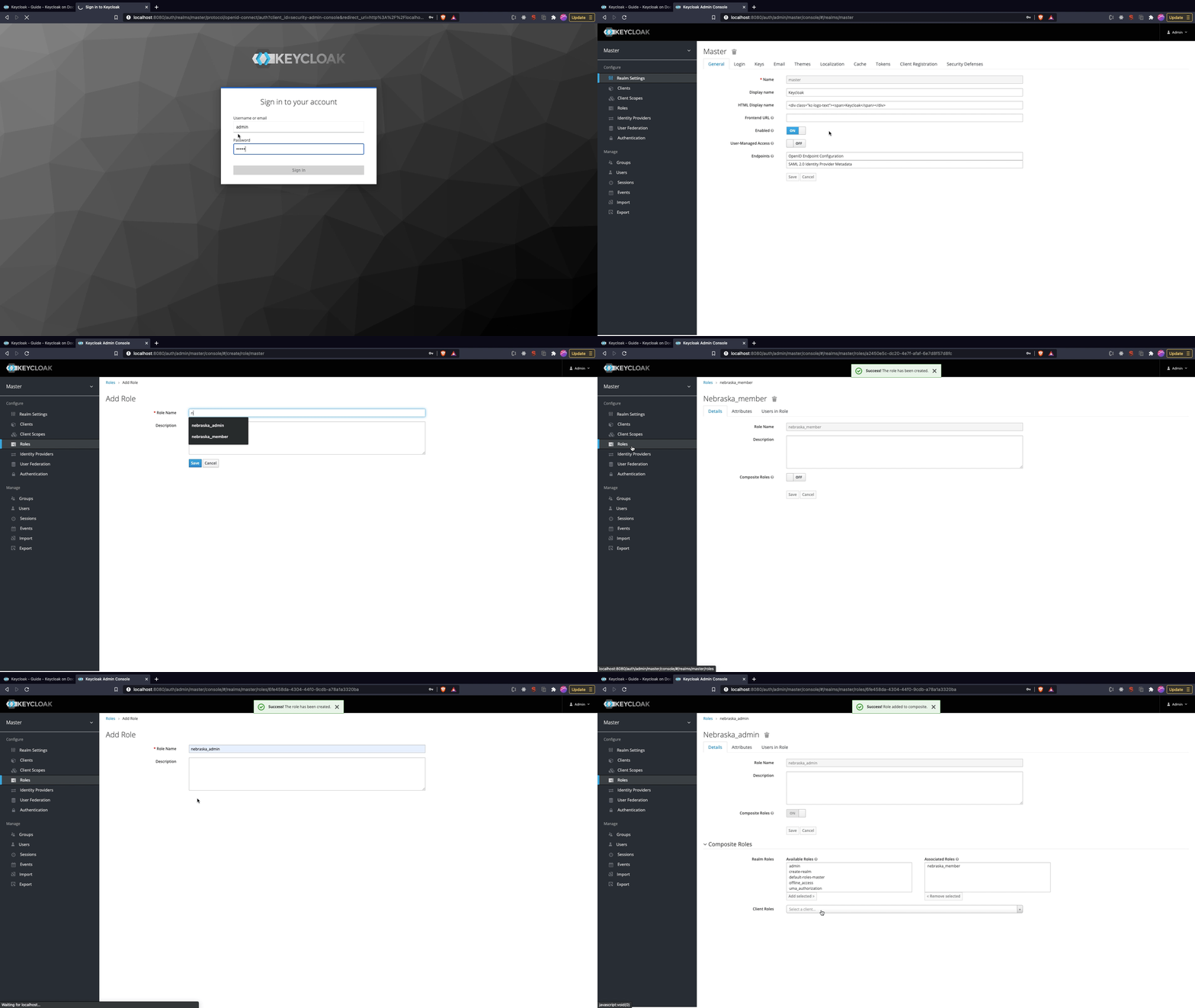
Creating Roles
Member Role
- Click on
Rolesmenu option and selectAdd Role. - Provide a name for the member role, here we will use
nebraska_member. - Click
Save.
Admin Role
- Click on
Rolesmenu option and selectAdd Role. - Provide a name for the admin role, here we will use
nebraska_admin. - Click
Save. - After the admin role is created enable composite role to ON. In the Composite Roles section select the member role, In our case it is nebraska_member and click Add Selected.
Now the member and admin roles are created, the admin role is a composite role which comprises of member role.
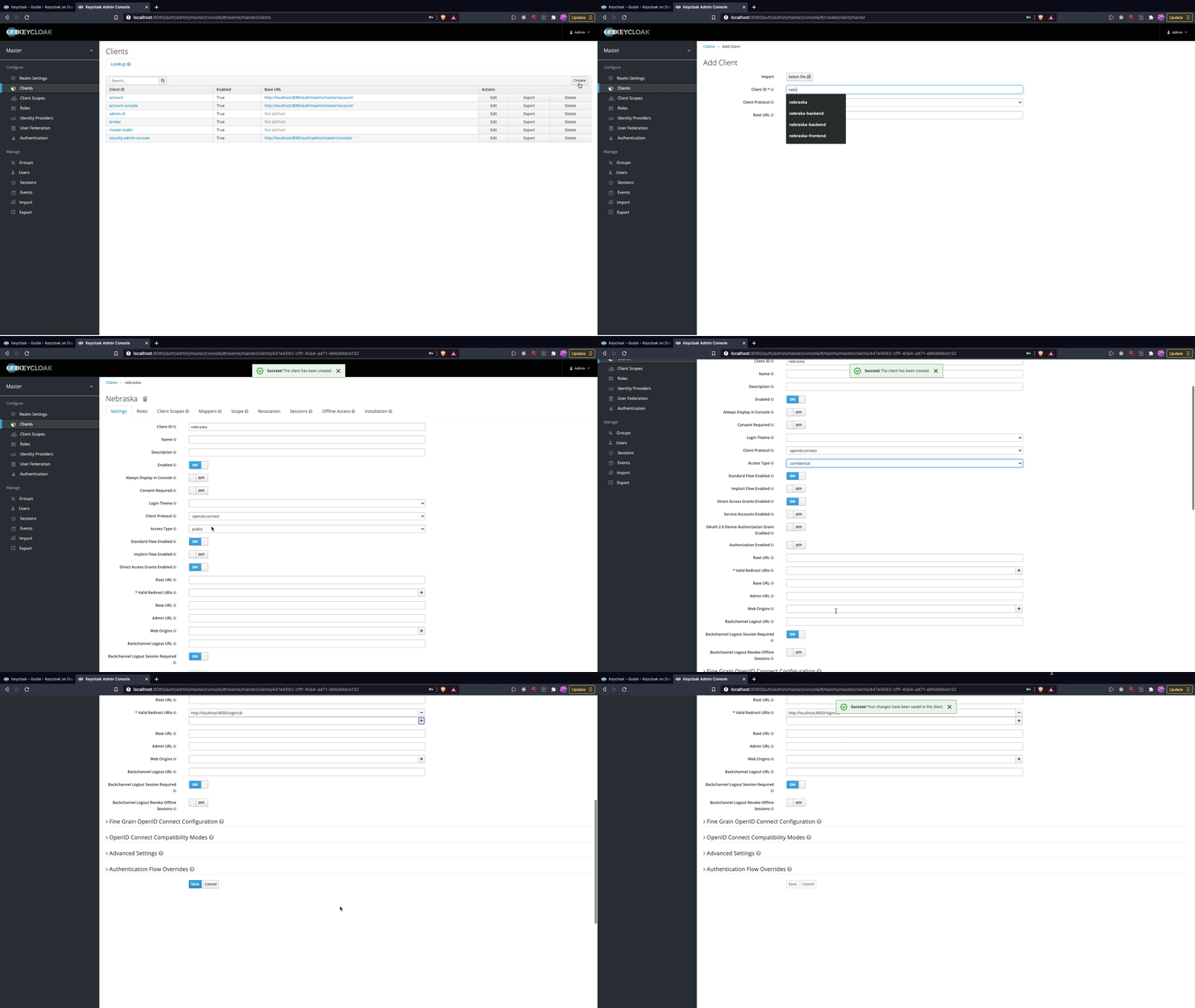
Creating a client
- Click on
Clientsmenu option and clickCreate. - Set the client name as
nebraskaand clickSave. - Change the
Access TypetoConfidential - Set
Valid Redirect URIstohttp://localhost:8000/login/cb.
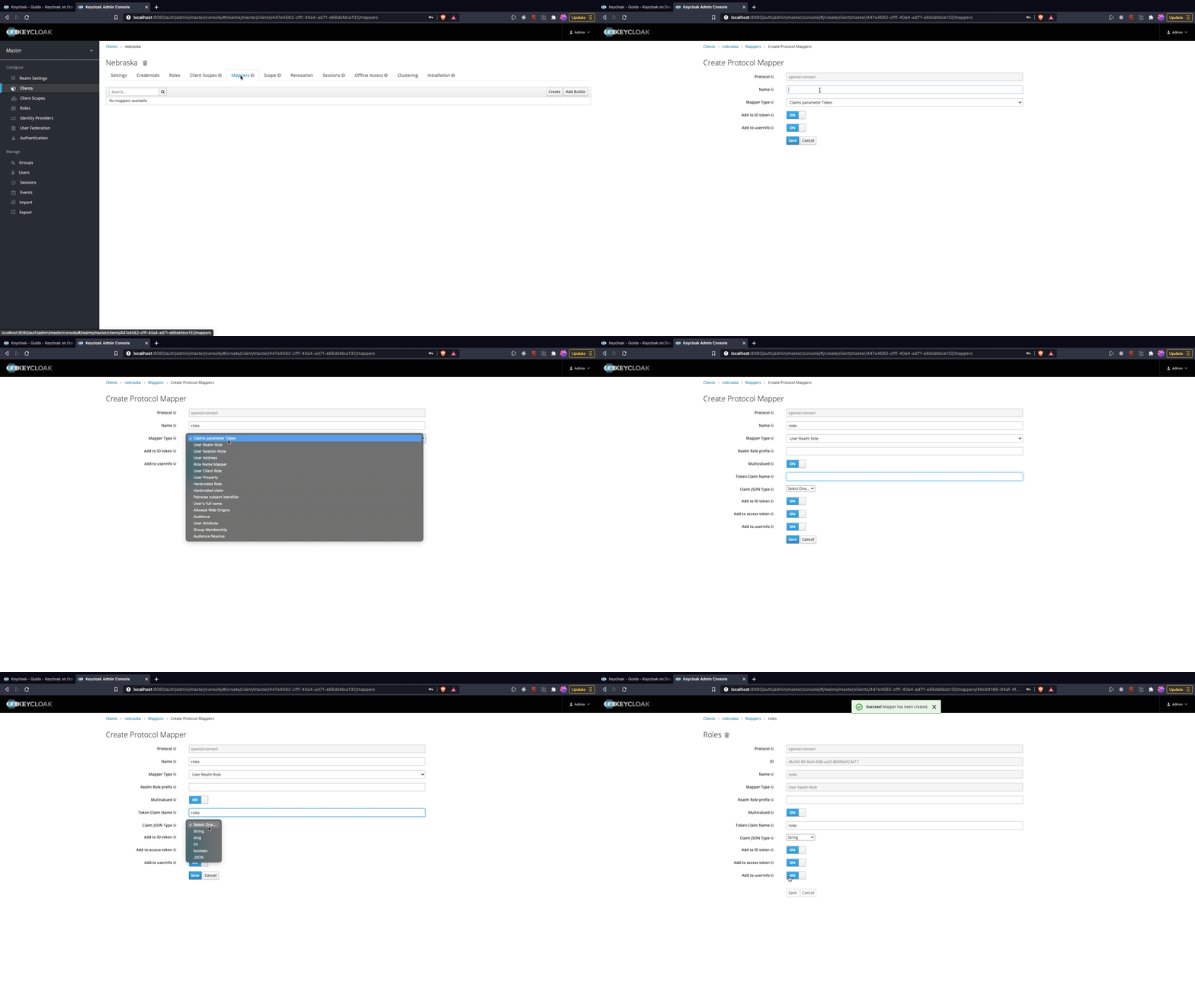
Adding roles scope to token
- Click on
Mapperstab in Client Edit View. Click onCreate. - Set the name as
roles, Select theMapper TypeasUser Realm Role,Token Claim Nameasrolesand SelectClaim JSON Typeas String. - Click
Save
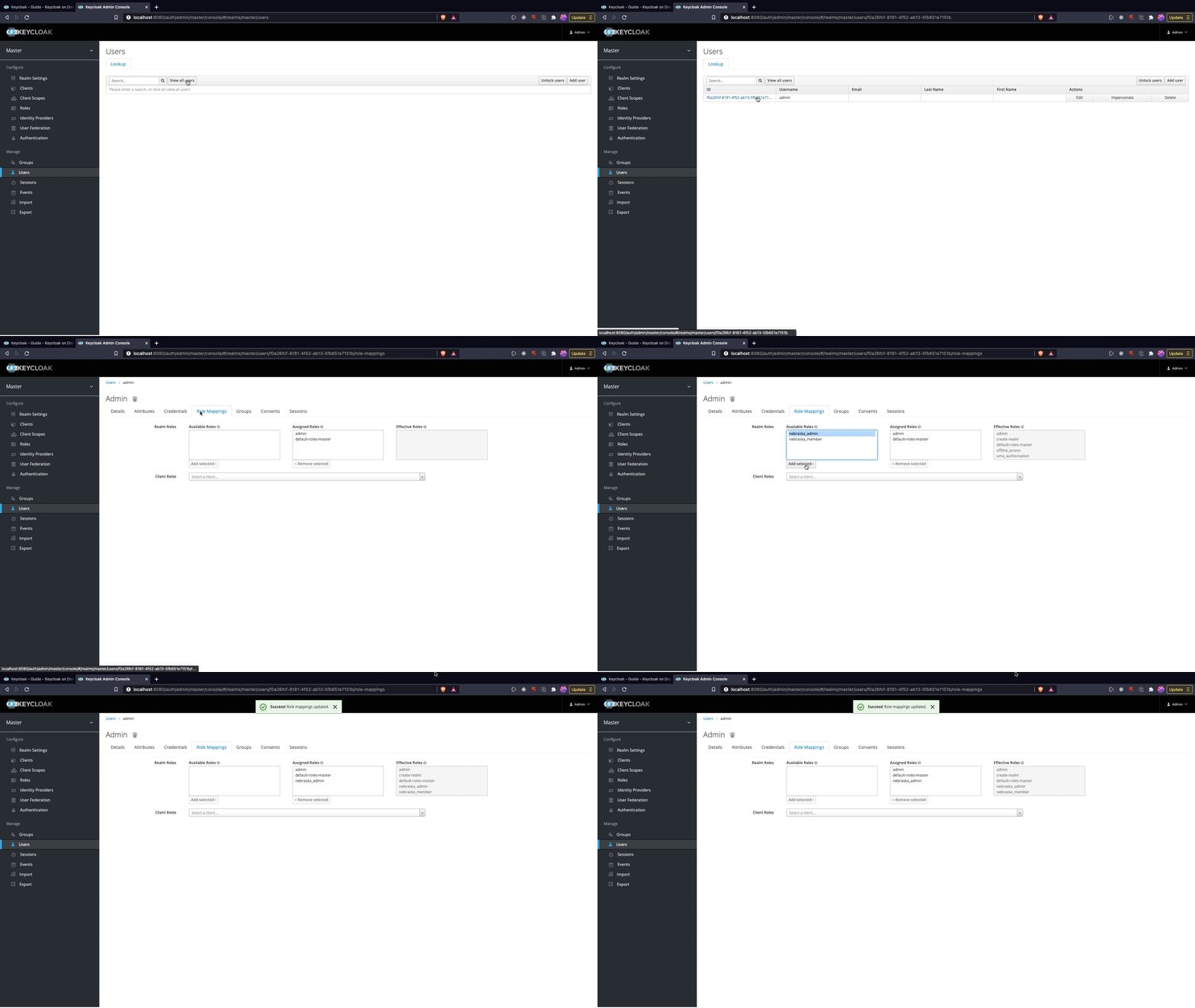
Attaching Roles to User
- Click on
Usersmenu option and clickView all users. - Once the user list appears select the user and click on
Edit. - Go to
Role Mappingtab and selectnebraska_adminrole and click on add selected to attach role to user. If you want to provide only member access access select the member role.
Preparing Auth0 as an OIDC provider for Nebraska
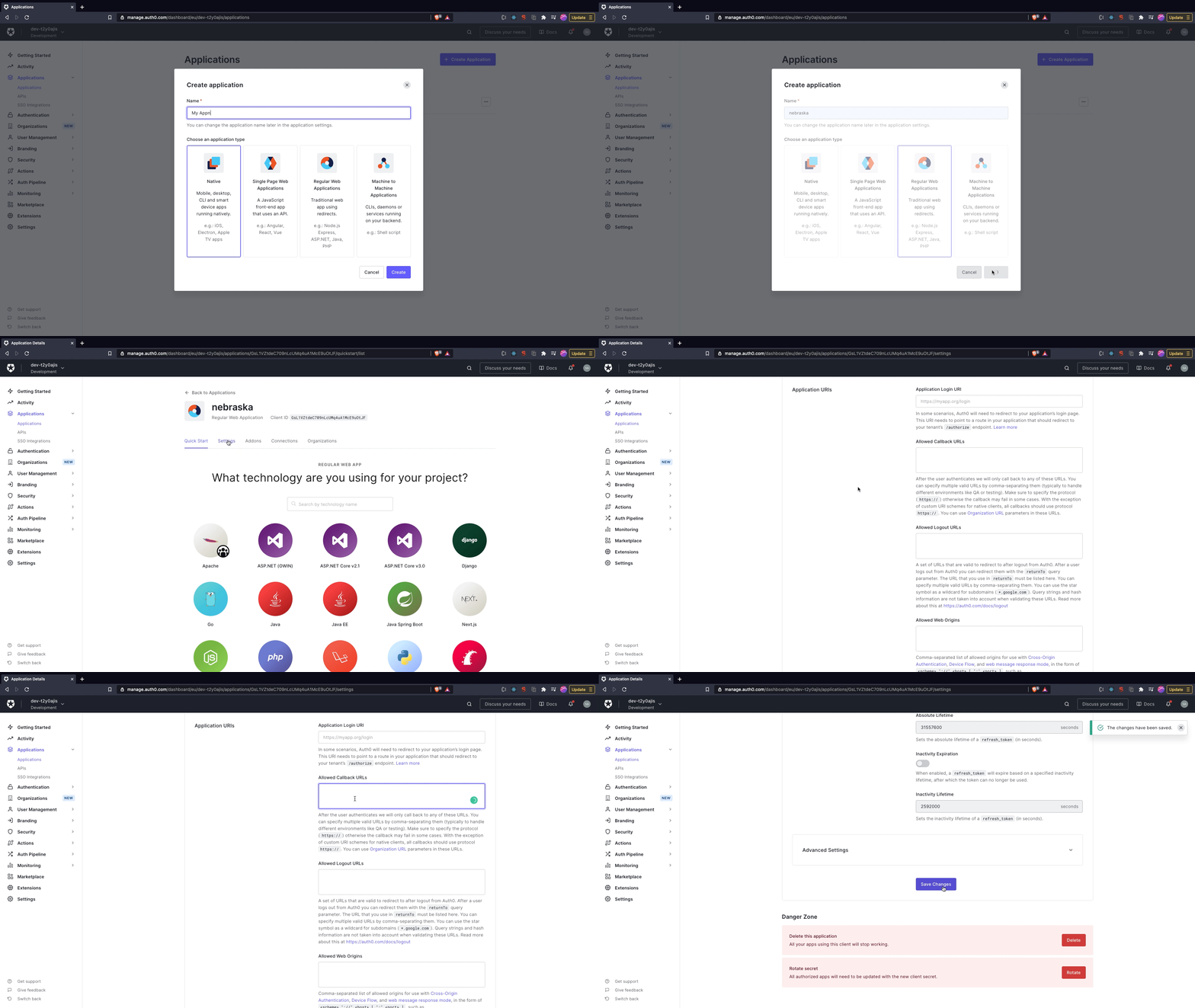
Create and configure new application
- Click on
Create Application. - Provide the name as
nebraska, selectRegular Web Application. - Click
Create - Click on the
settingstab. - Under
Application URIssection provide theAllowed Callback URLsashttp://localhost:8000/login/cb. - Click on
Save Changes
Adding roles scope to token
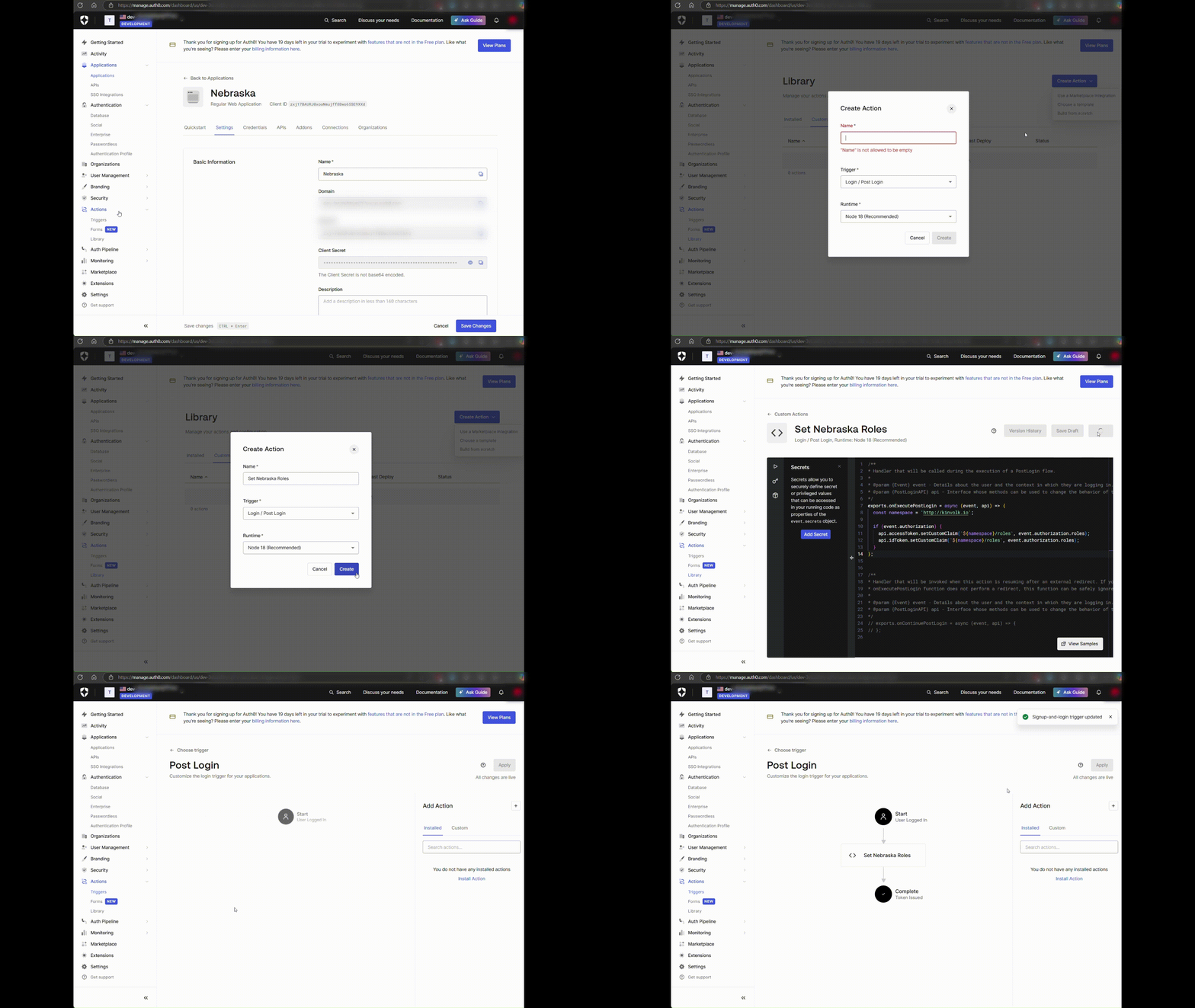
- Click on
Actions > Libraryand find theCreate Actionmenu from top right. - Click on
Build from scratchoption. - Provide a name for the new action.
- Choose the
Login / Post Logintrigger type and the recommended runtime. - Paste the following snippet in
Scripttext box.
exports.onExecutePostLogin = async (event, api) => {
  const namespace = 'http://kinvolk.io';

  if (event.authorization) {
    api.accessToken.setCustomClaim(`${namespace}/roles`, event.authorization.roles);
    api.idToken.setCustomClaim(`${namespace}/roles`, event.authorization.roles);
  }
};
- Click on
Deploy. Now the action to add the roles to the token is setup, but then we yet have to create the trigger for it. - Go to
Triggersunder theActionsmain menu. - Choose the
post-loginflow. - Find the newly created action on the right side (switch to the
customtab). - Drag & Drop the action between the
StartandCompletesteps in the flow. - Click
Apply.
Now the action that adds the roles to the token will be triggered after each login and the roles will be available in the key http://kinvolk.io/roles.
Note: The oidc-roles-path argument accepts a JSONPath to fetch roles from the token, in this case set the value to http://kinvolk\.io/roles.
Preparing Dex with github connector as an OIDC provider for Nebraska
Setting up a Github App to be used as a connector for Dex
-
Create a new
organizationin Github. -
Now you need a Github app, go to
https://github.com/organizations/<ORG>/settings/apps/newand fill the following fields:-
GitHub App name- just put some fancy name. -
Homepage URL-http://localhost:8000 -
User authorization callback URL-http://0.0.0.0:5556/dex/callback -
Permissions-Access: Read-onlytoOrganization members -
User permissions- none needed -
Subscribe to events- tickMembership,OrganizationandTeam -
Where can this GitHub App be installed?-Only on this account
-
-
Press
Create GitHub Appbutton -
Next thing you’ll get is
OAuth credentialsat the bottom of the page of the app you just created, we will need bothClient IDandClient secret -
You also need to install the app you just created
-
Go to
https://github.com/organizations/<ORG>/settings/apps -
Click
Editbutton for your new app -
Choose
Install Appon the left of the page and perform the installation
-
Creating Github Teams
-
Create two teams in your organization with the following names
adminandviewer. -
Add the admin users to both
adminandviewerteam. Add the non-admin users toviewerteam.
Configuring and Running Dex IDP
- Create a configuration for Dex based on the example.
example.yaml
issuer: http://0.0.0.0:5556/dex

storage:
  type: sqlite3
  config:
    file: /var/dex/dex.db

web:
  http: 0.0.0.0:5556

staticClients:
  - id: nebraska
    redirectURIs:
      - 'http://localhost:8000/login/cb'
    name: 'nebraska'
    secret: <ClientSecret> // Random Hash

connectors:
- type: github
  id: github
  name: GitHub
  config:
    clientID: <Client ID>
    clientSecret: <Client Secret>
    redirectURI: http://0.0.0.0:5556/dex/callback
    loadAllGroups: true
    teamNameField: slug
    useLoginAsID: true

enablePasswordDB: true
- Run Dex using docker with the example configuration.
docker run -p 5556:5556 -v ${PWD}/example.yaml:/etc/dex/example.yaml -v ${PWD}/dex.db:/var/dex/dex.db ghcr.io/dexidp/dex:v2.28.1 dex serve /etc/dex/example.yaml
Running nebraska
go run ./cmd/nebraska –auth-mode oidc –oidc-admin-roles
:admin –oidc-viewer-roles :viewer –oidc-client-id nebraska –oidc-issuer-url http://127.0.0.1:5556/dex –oidc-client-secret –oidc-roles-path groups –oidc-scopes groups,openid,profile
Deploying on Kubernetes using the Helm Chart
We maintain a Helm Chart for deploying a Nebraska instance to Kubernetes. The Helm Chart offers flexible configuration options such as:
-
Deploy a single-replica
PostgreSQLdatabase together with Nebraska. We use the container image and also the Helm Chart (as a subchart) from Bitnami -
Enabling / disabling, and configuring persistence for both Nebraska and PostgreSQL (persistence is disabled by default)
-
Common deployment parameters (exposing through
Ingress, replica count, etc.)
For the complete list of all available customization options, please read the Helm Chart README .
To install the Helm Chart using the default configuration (noop authentication), you can execute:
$ helm repo add nebraska https://flatcar.github.io/nebraska
$ helm install my-nebraska nebraska/nebraska
You probably need to customize the installation, then use a Helm values file. Eg.:
# nebraska-values.yaml
config:
  app:
    title: Nebraska

  auth:
    mode: github
    github:
      clientID: <your clientID obtained during GitHub App registration>
      clientSecret: <your clientSecret obtained during GitHub App registration>
      sessionAuthKey: <64 random hexadecimal characters>
      sessionCryptKey: <32 random hexadecimal characters>
      webhookSecret: <random Secret used in GitHub App registration>

ingress:
  annotations:
    kubernetes.io/ingress.class: <your ingress class>
  hosts:
    - nebraska.example.com

postgresql:
  postgresqlPassword: <A secure password>
  persistence:
    enabled: true
    storageClass: <A block storage-class>
    accessModes:
      - ReadWriteOnce
    size: 1Gi
Then execute:
$ helm install my-nebraska nebraska/nebraska --values nebraska-values.yaml
Troubleshooting:
-
I’m getting a blank page!
- You likely visited nebraska frontend website before, so browser
likely has cached the
index.htmlpage, so it won’t get it from Nebraska, but instead start asking for some CSS and javascript stuff outright, which it won’t get. That results in a blank page. Force the browser to getindex.htmlfrom Nebraska by either doing a force refresh (ctrl+f5 on firefox), or by cleaning the cache for localhost (or the server where the Nebraska instance is deployed). We will try to improve this in the future.
- You likely visited nebraska frontend website before, so browser
likely has cached the